Accept payments with  Prodamus
The bot sends an invoice with a “Pay” button and delivers the product after payment. Prodamus supports self-employed people, sole traders and companies in Russia, and sends receipts to customers automatically.

How it works
- 1
The bot sends an invoice
A “Pay” button right in the conversation.
- 2
Your customer pays
On Prodamus’s checkout page, by card, Russia’s Faster Payments System (SBP) or another supported method.
- 3
The bot delivers the product
Automatically, as soon as Prodamus confirms payment.
Connect Prodamus to your chatbot
In your dashboard:PaymentsConnectionProdamus
-
1
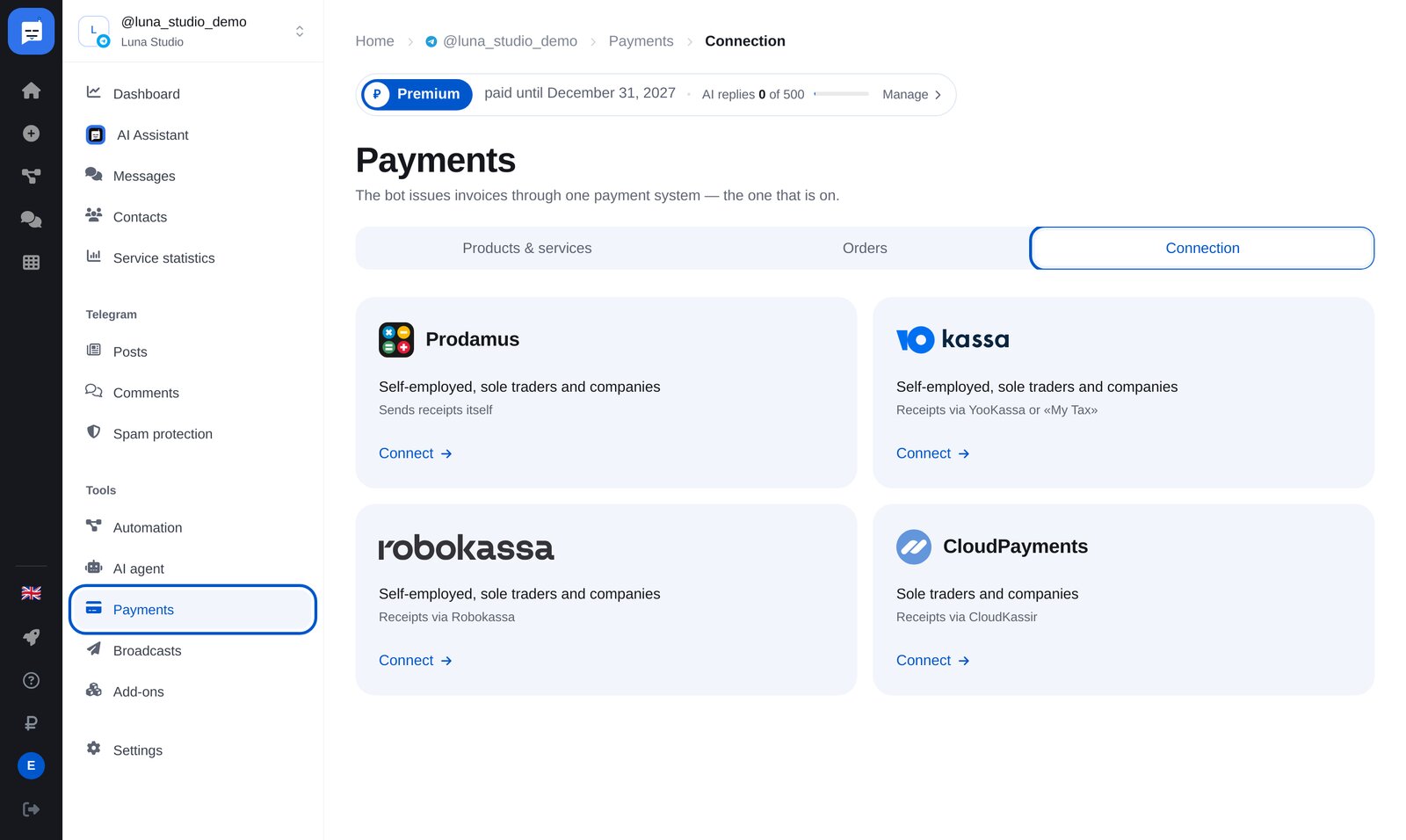
Open “Payments” → “Connection”
Open “Payments” → “Connection” in your bot’s menu. There are four providers; the one that is enabled takes payments.
-
2
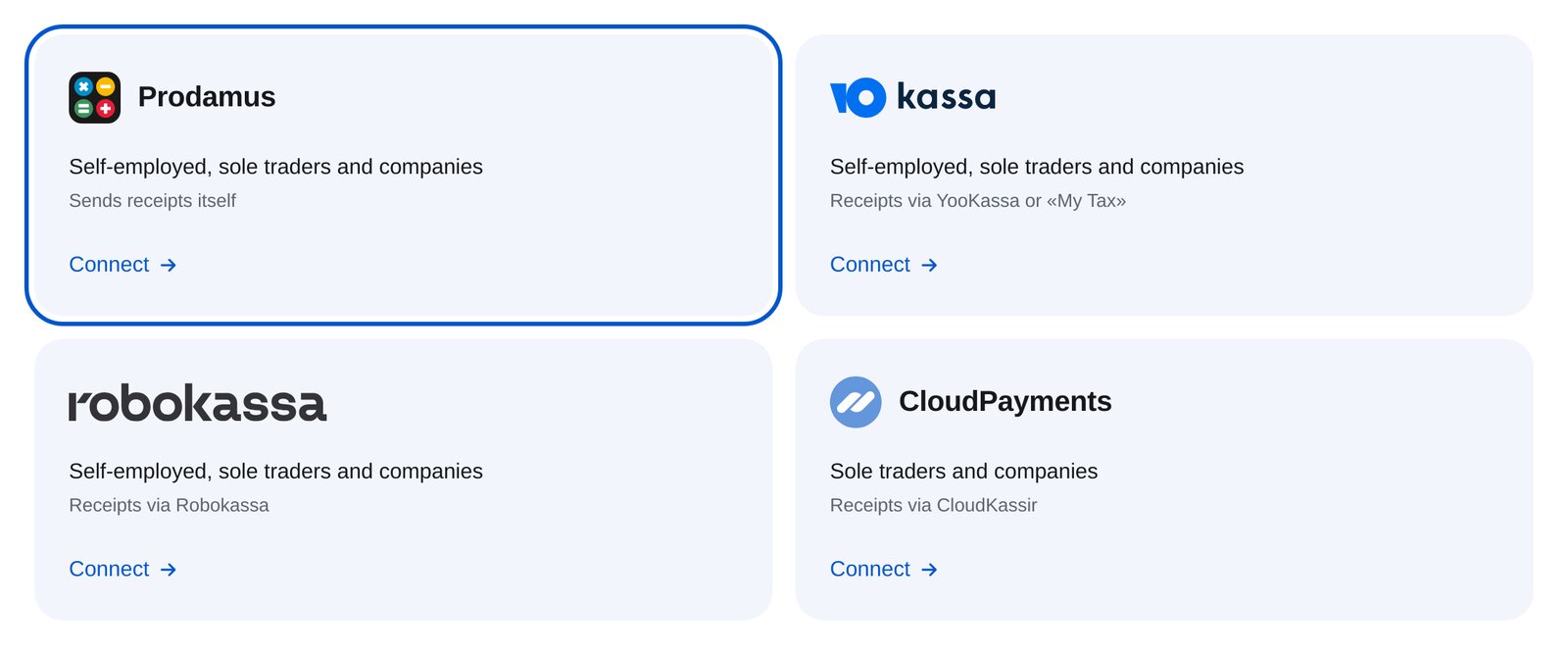
Choose Prodamus
Prodamus is the first card. It supports self-employed people, sole traders and companies in Russia, and sends customer receipts automatically.
-
3
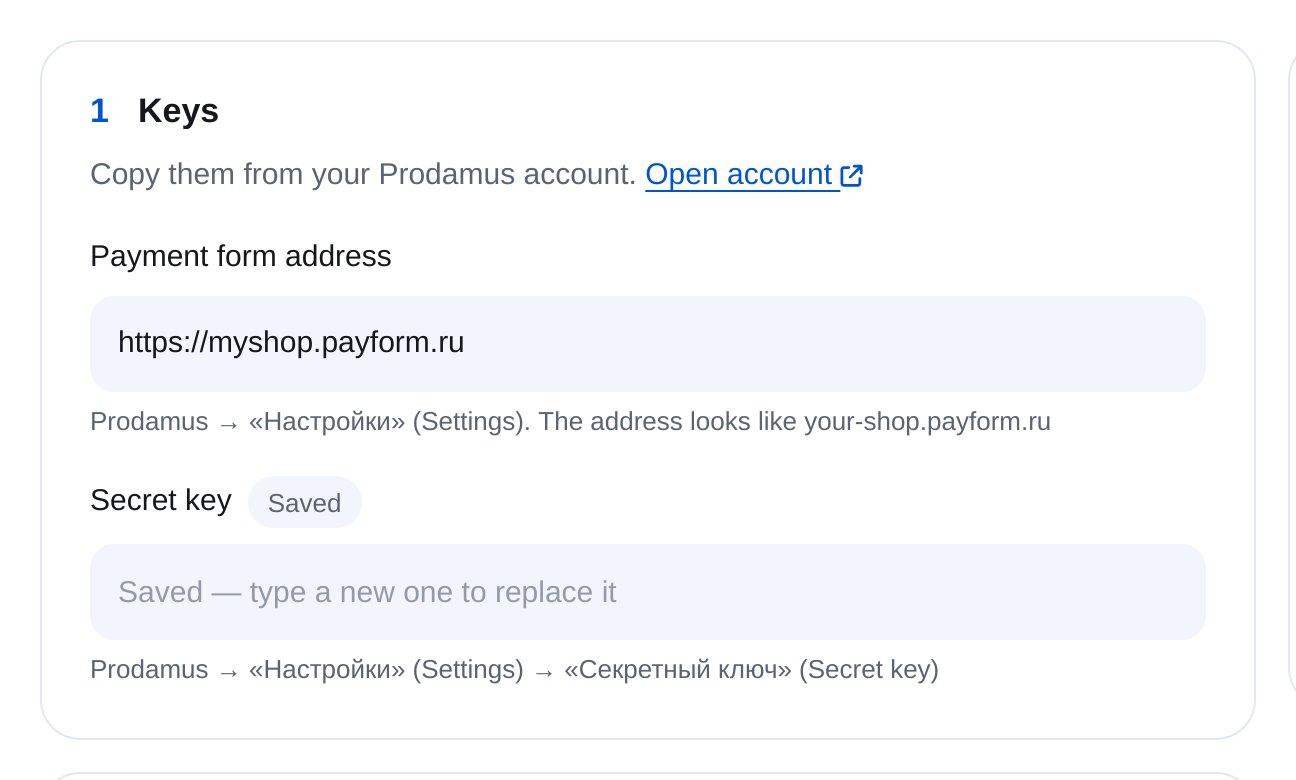
Enter your payment form address and secret key
In your Prodamus account, open “Настройки” (Settings). You’ll find the payment form address, such as your-store.payform.ru, and the secret key. The fields save automatically.
-
4
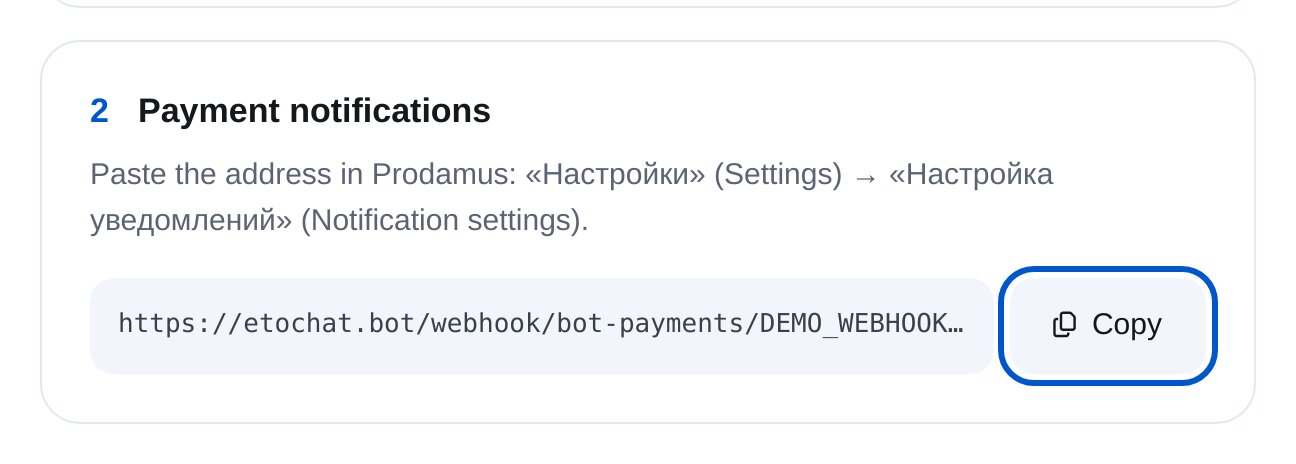
Set the notification address
Copy the address into Prodamus: “Настройки” → “Настройка уведомлений” (Settings → Notification settings). You can add it alongside existing addresses. Without it, the bot won’t receive payment confirmation.
-
5
Test the connection, then enable payments
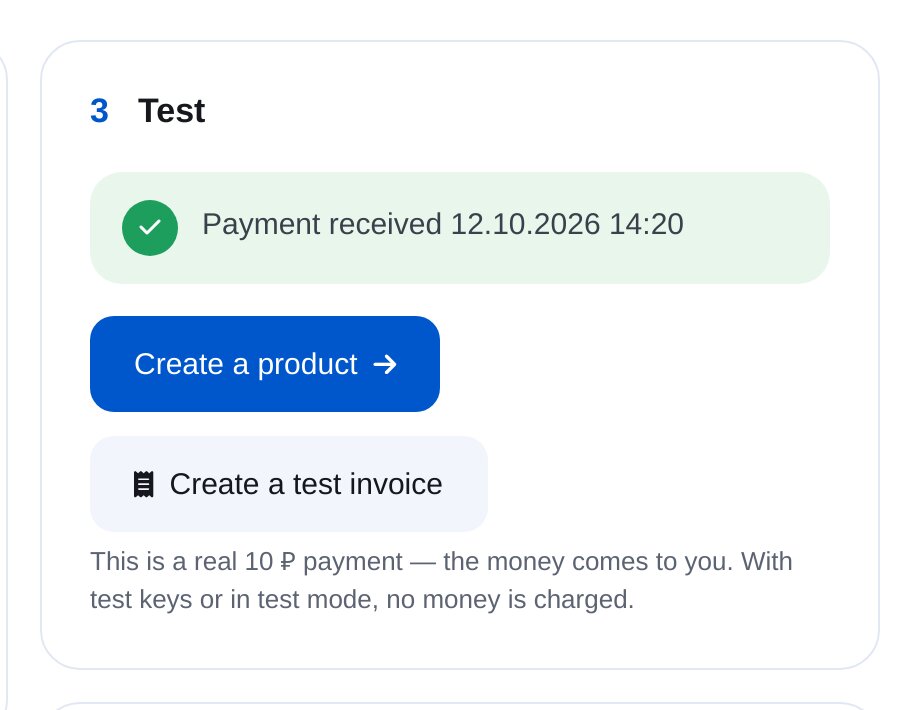
“Create a test invoice” opens checkout for 10 RUB. When the provider sends a notification, you’ll see “Payment received”. Then turn on “Accepting payments” at the top of the page.
-
6
Add a product
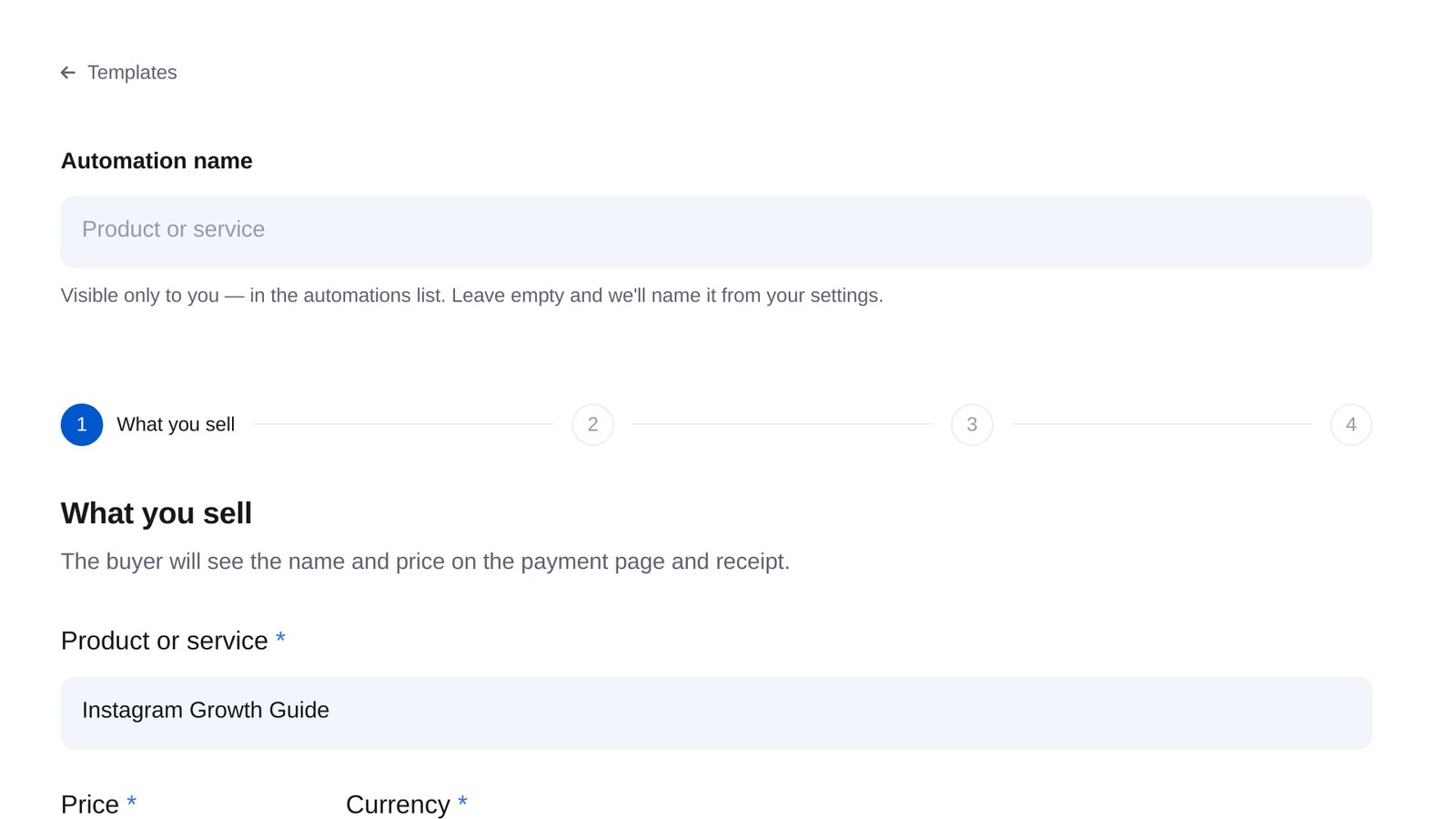
Open “Products & services” → “New sale” to set the name, price and delivery after payment. Sell through a keyword or a “Send invoice” block in any flow.


FAQs
Who can use Prodamus?
Where do I find the form address and secret key?
Can I test without charging real money?
Which messaging platforms does it work with?
How much is it?
Can I switch to another provider later?
Other payment providers
Set up Prodamus in minutes