Accept payments in your chatbot
The bot sends an invoice with a “Pay” button and delivers the product once your payment provider confirms payment. The money goes straight to your account.
 Prodamus

 CloudPayments
How it works
- 1
The bot sends an invoice
After a keyword or at any step in your flow, with a “Pay” button.
- 2
Your customer pays
On the provider’s checkout page, by card, Russia’s Faster Payments System (SBP) or another supported method.
- 3
The bot delivers the product
Text, links or a file, sent automatically as soon as payment is confirmed.
Payment providers
Connect one provider to issue invoices through your bot. Each has its own setup guide with screenshots.
Prodamus Self-employed people, sole traders and companies in RussiaSends receipts automatically
Connect Prodamus
Self-employed people, sole traders and companies in RussiaReceipts through YooKassa or “Мой налог” (Russia’s My Tax app)
Connect YooKassa
Self-employed people, sole traders and companies in RussiaReceipts through Robokassa
Connect Robokassa
CloudPayments Sole traders and companies in RussiaReceipts through CloudKassir
Connect CloudPayments
Start taking payments through your bot
In your dashboard:Payments
-
1
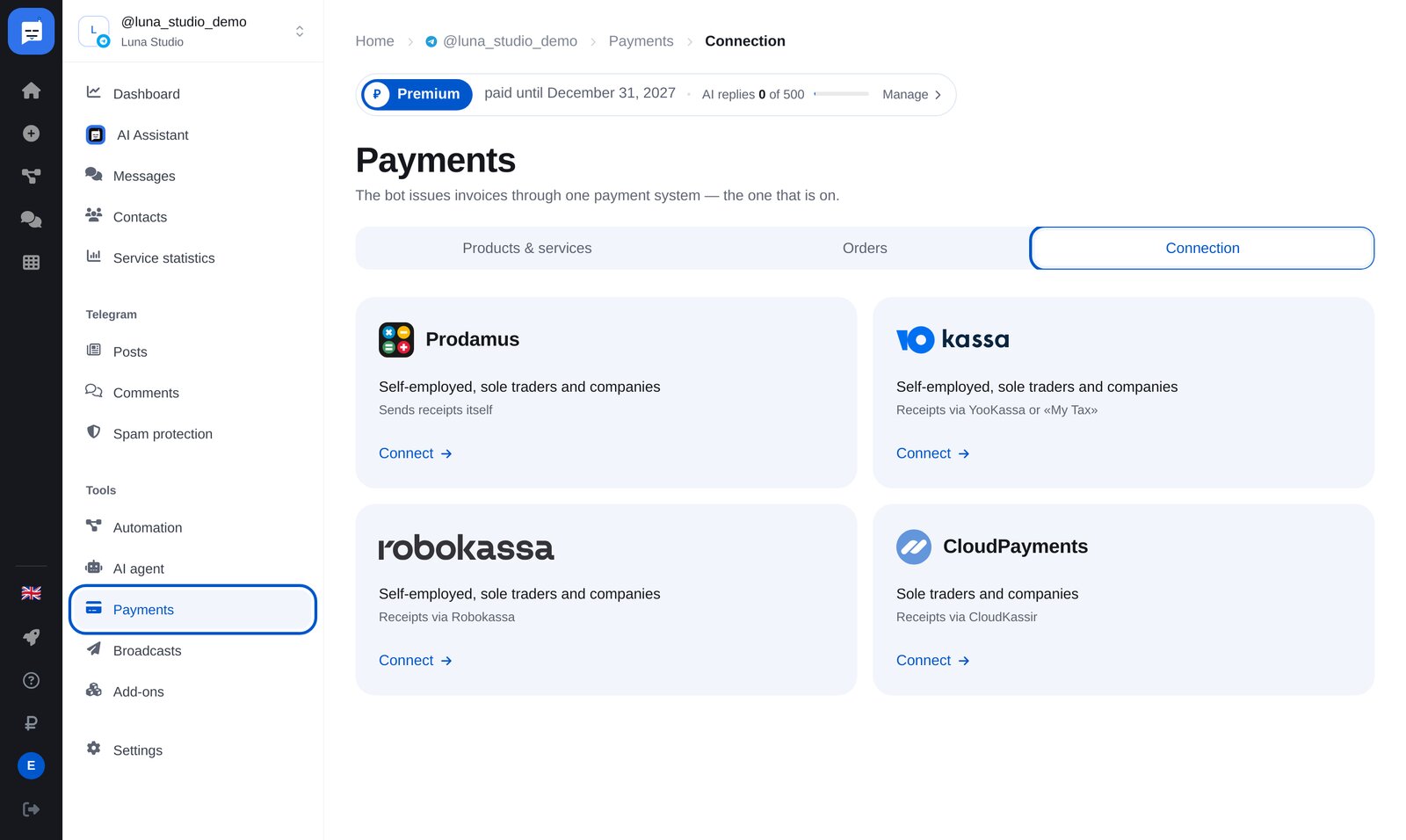
Connect a payment provider
Open “Payments” → “Connection” in your bot’s menu. Choose a provider, enter the keys from its account and set the notification address. Follow the provider’s guide below.
-
2
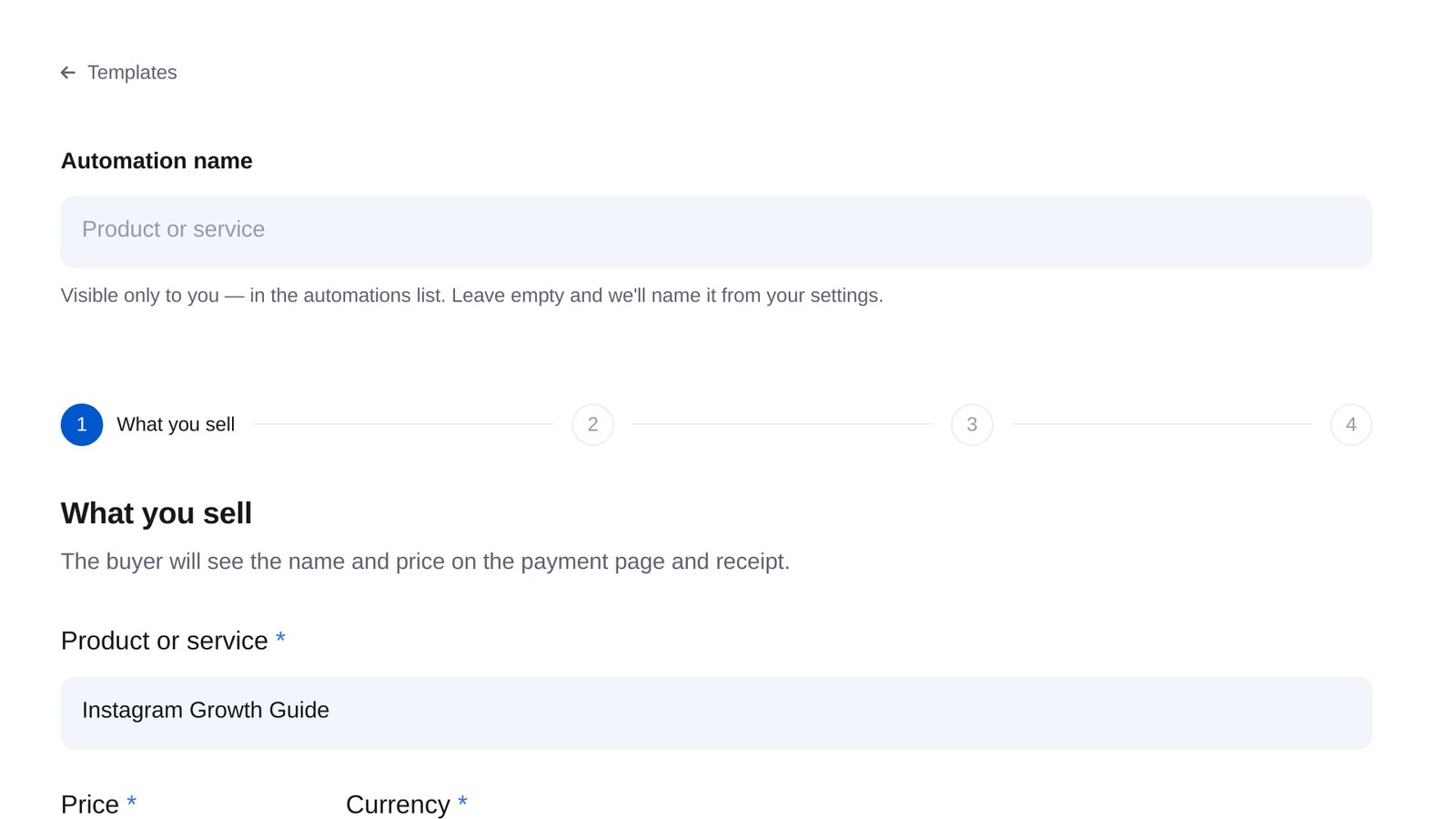
Add a product
Go to “Products & services” → “New sale” and enter a name and price. Customers will see these at checkout and on their receipt.
-
3
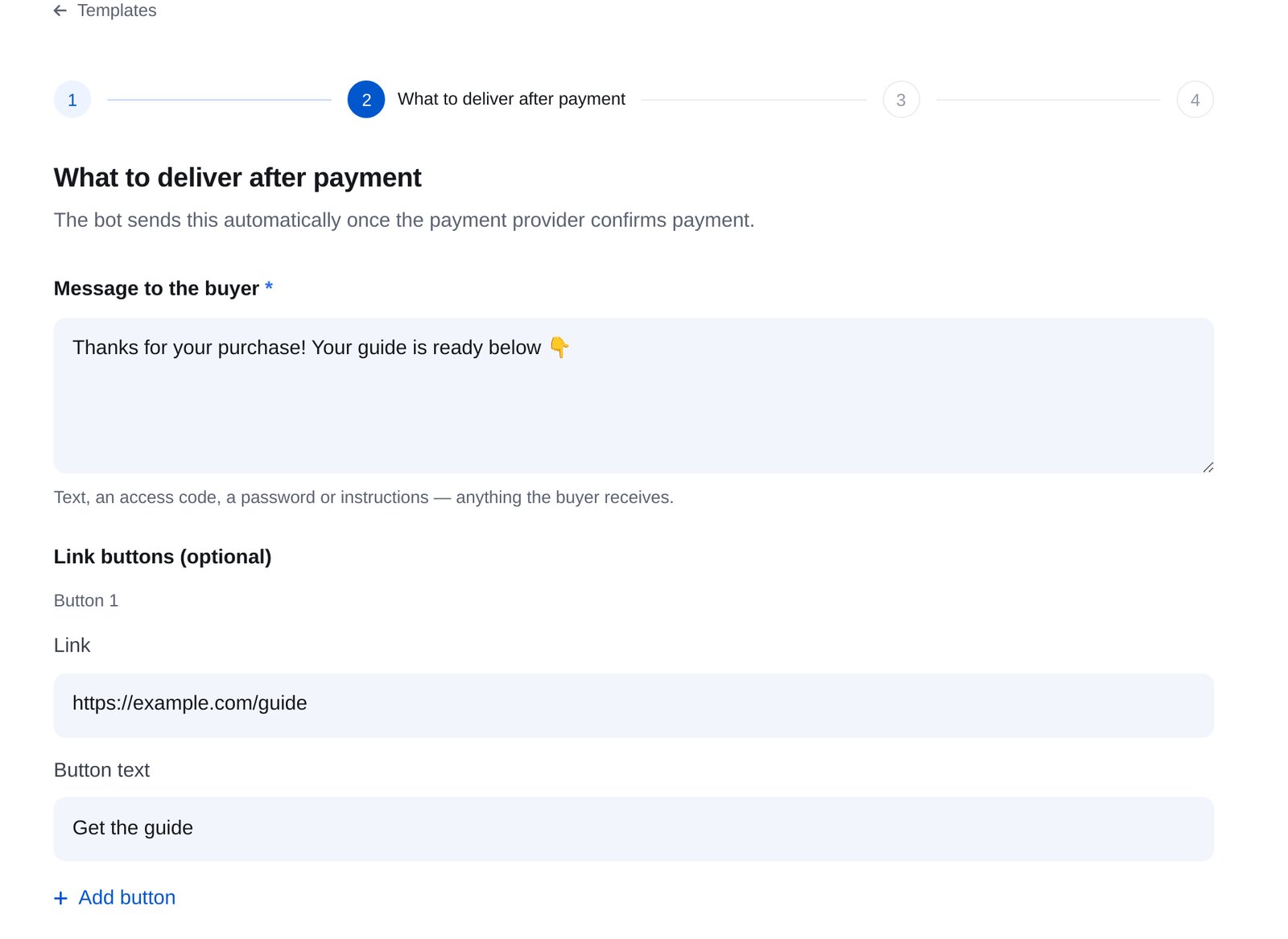
Choose what to send after payment
Text, an access code, up to three link buttons or a file. The bot sends it automatically once your payment provider confirms payment.
-
4
Choose how customers get their invoice
Use a keyword and the wizard builds the flow for you: the customer sends the word and receives an invoice. Or add a “Send invoice” block anywhere in the flow builder.
-
5
Track your orders
The “Orders” tab shows who received an invoice, opened checkout or paid.



Where your bot can take payments
FAQs
Which payment providers can I connect?
Which messaging platforms support payments?
Do you charge a payment fee?
What happens after payment?
Can self-employed people use it?
Do I need a cash register?
How do I check the connection?
How much is it?
Set up payments in minutes