A live chat widget for your website
A button, chat window and start screen with messenger buttons, designed for your brand with a live preview. Install with one line of code, then update its appearance in your dashboard.

How it works
- 1
Set the appearance
Changes appear instantly in the preview.
- 2
Paste the code
One line for Tilda, WordPress, 1C-Bitrix or any other website.
- 3
Your visitor writes
Messages arrive in the same inbox as your Telegram conversations.
How to set up and install a website chat widget
In your dashboard:Website chat settingsDesign
-
1
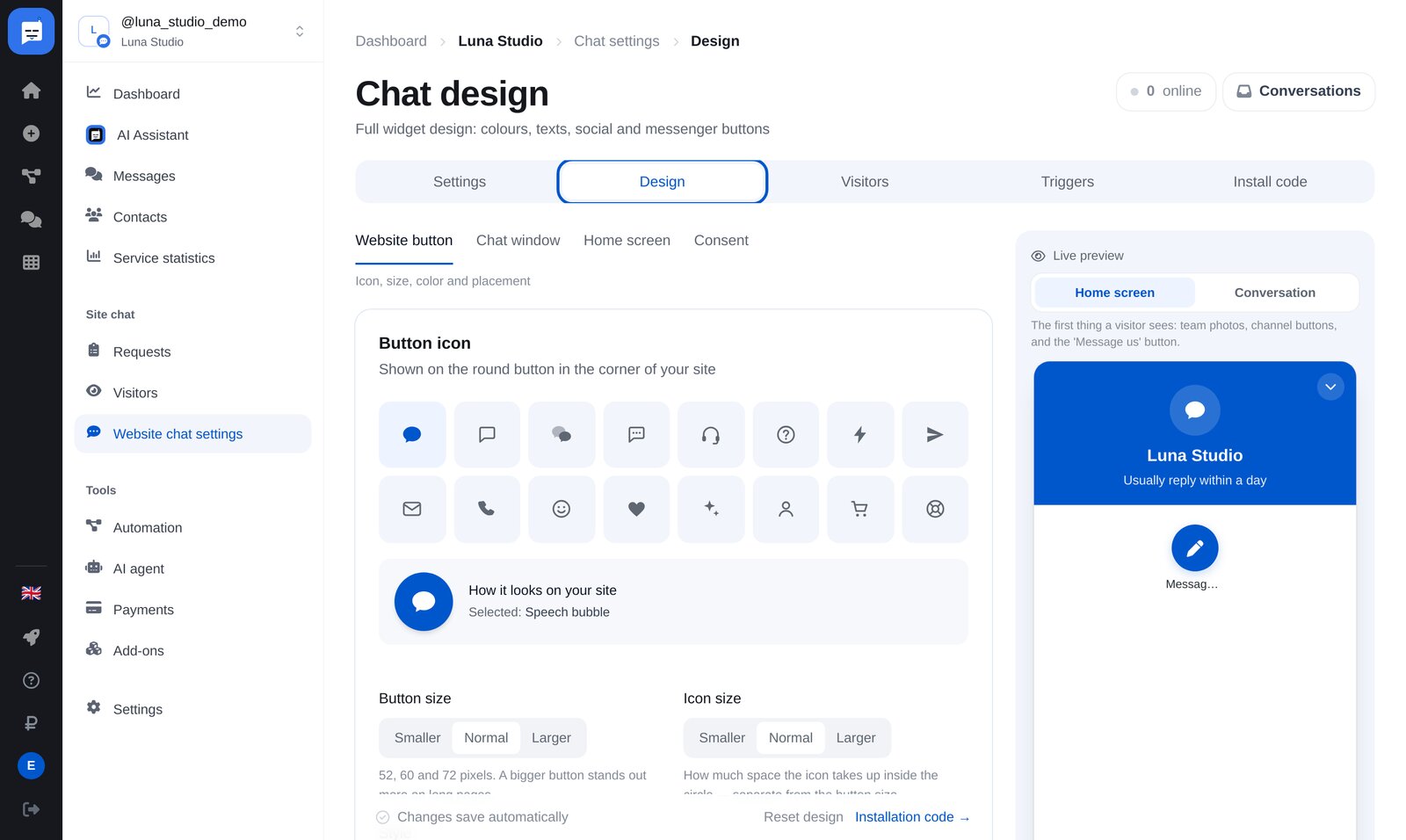
Open the “Design” tab
In the website menu on the left, open “Website chat settings”. The tabs at the top cover settings, design, visitors, triggers and installation code.
-
2
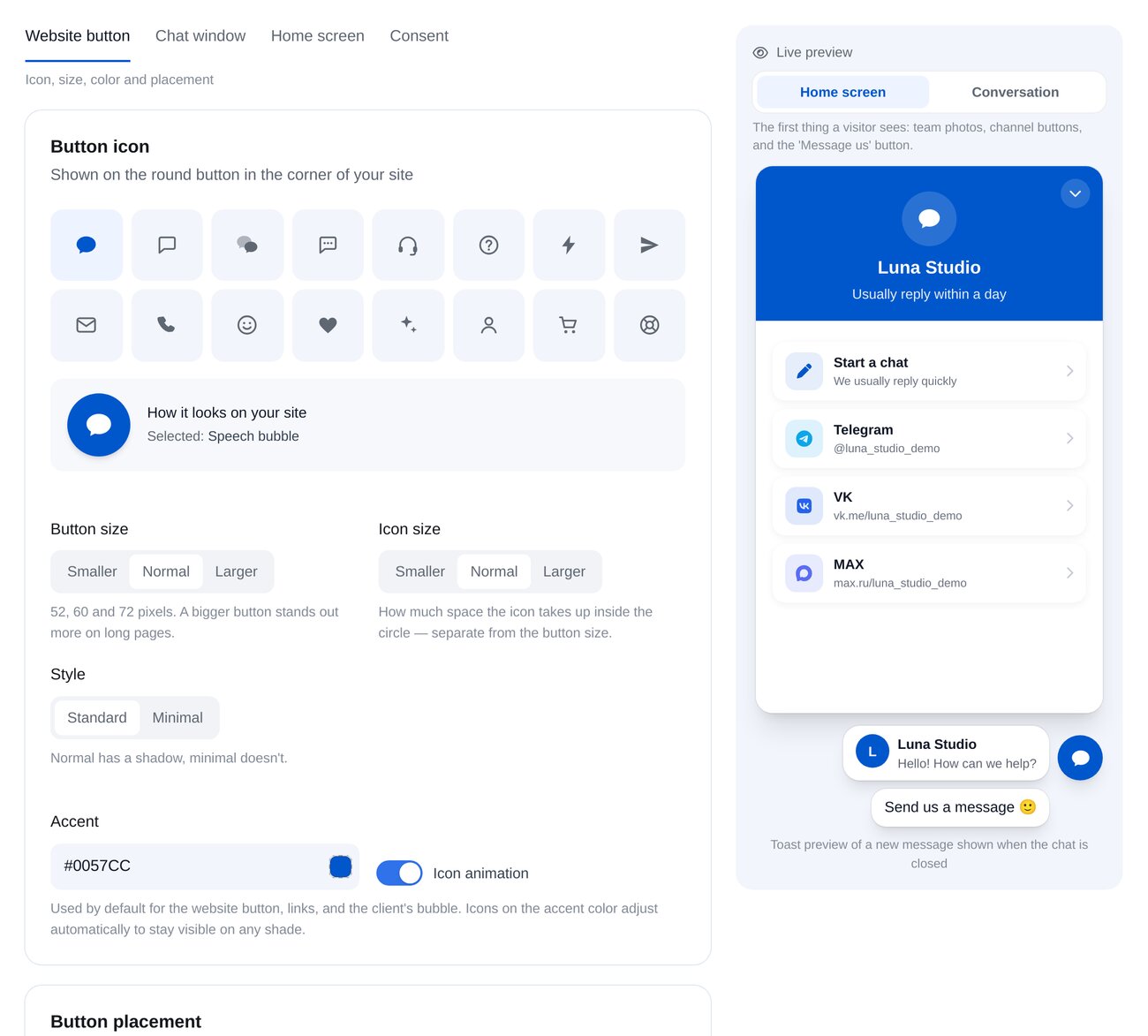
Website button
Choose from 16 icons, set button and icon sizes, style, brand colour and animation. Set the side and spacing separately for desktop and mobile.
-
3
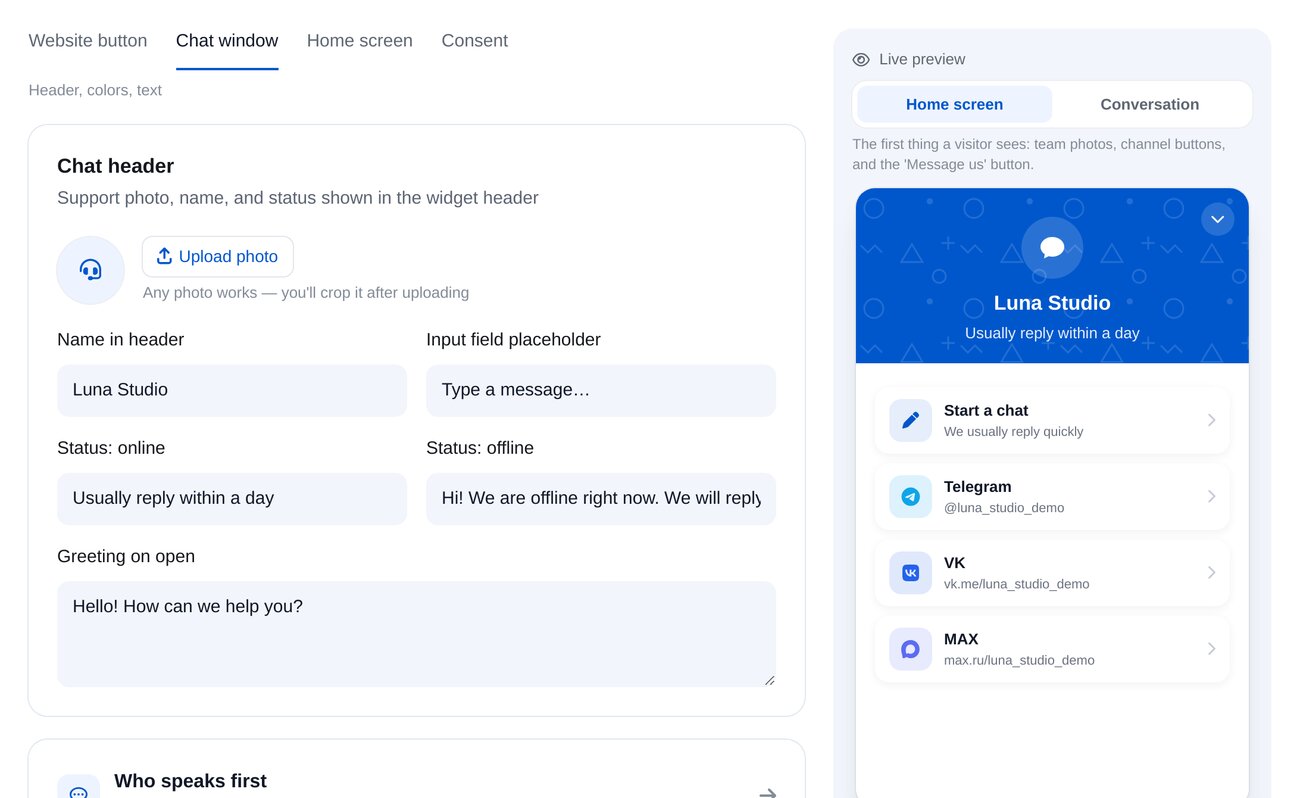
Chat window
Header photo, name and status, opening greeting, team photos, header colours and pattern.
-
4
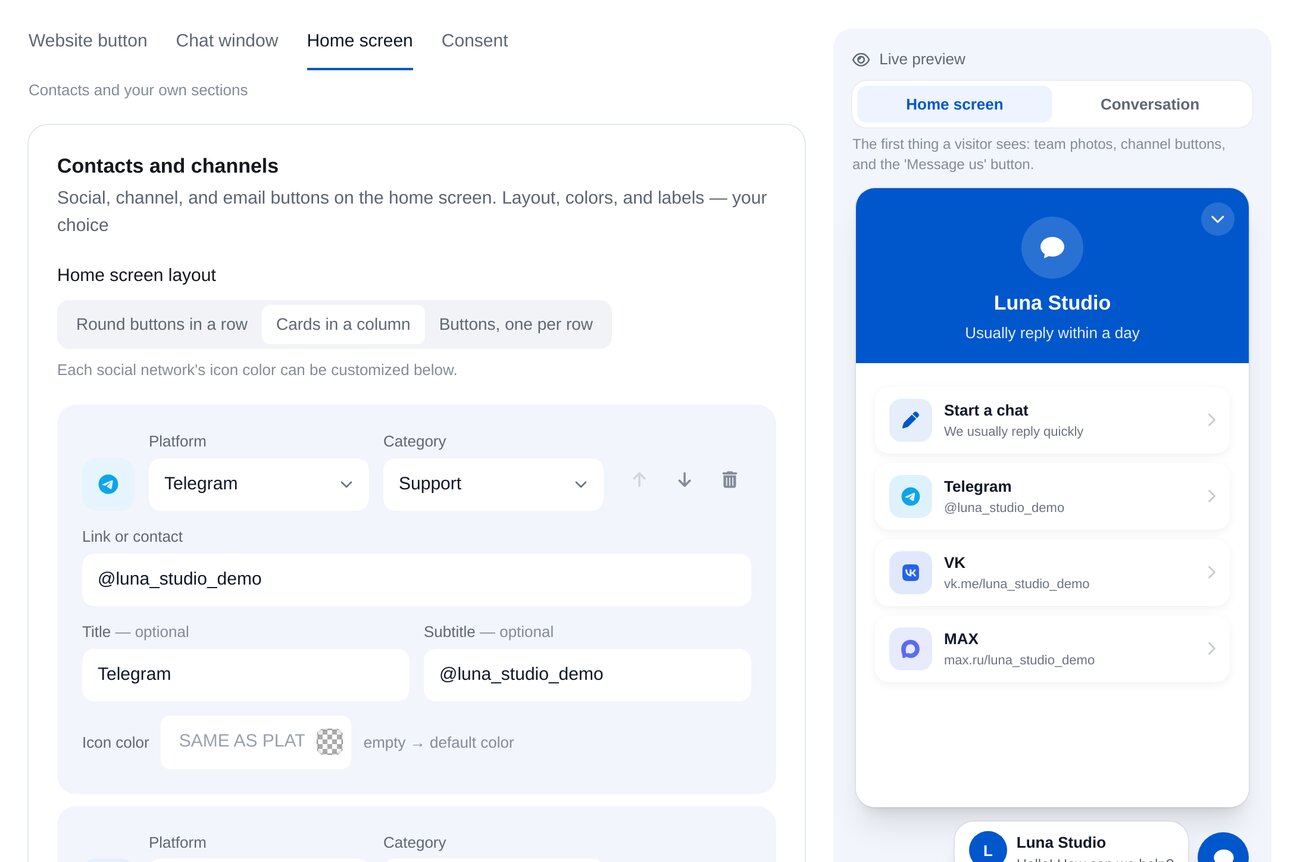
Messenger buttons
The start screen has “Start a chat” and buttons for Telegram and other platforms. Show circles in a row, cards in a column or one button per row.
-
5
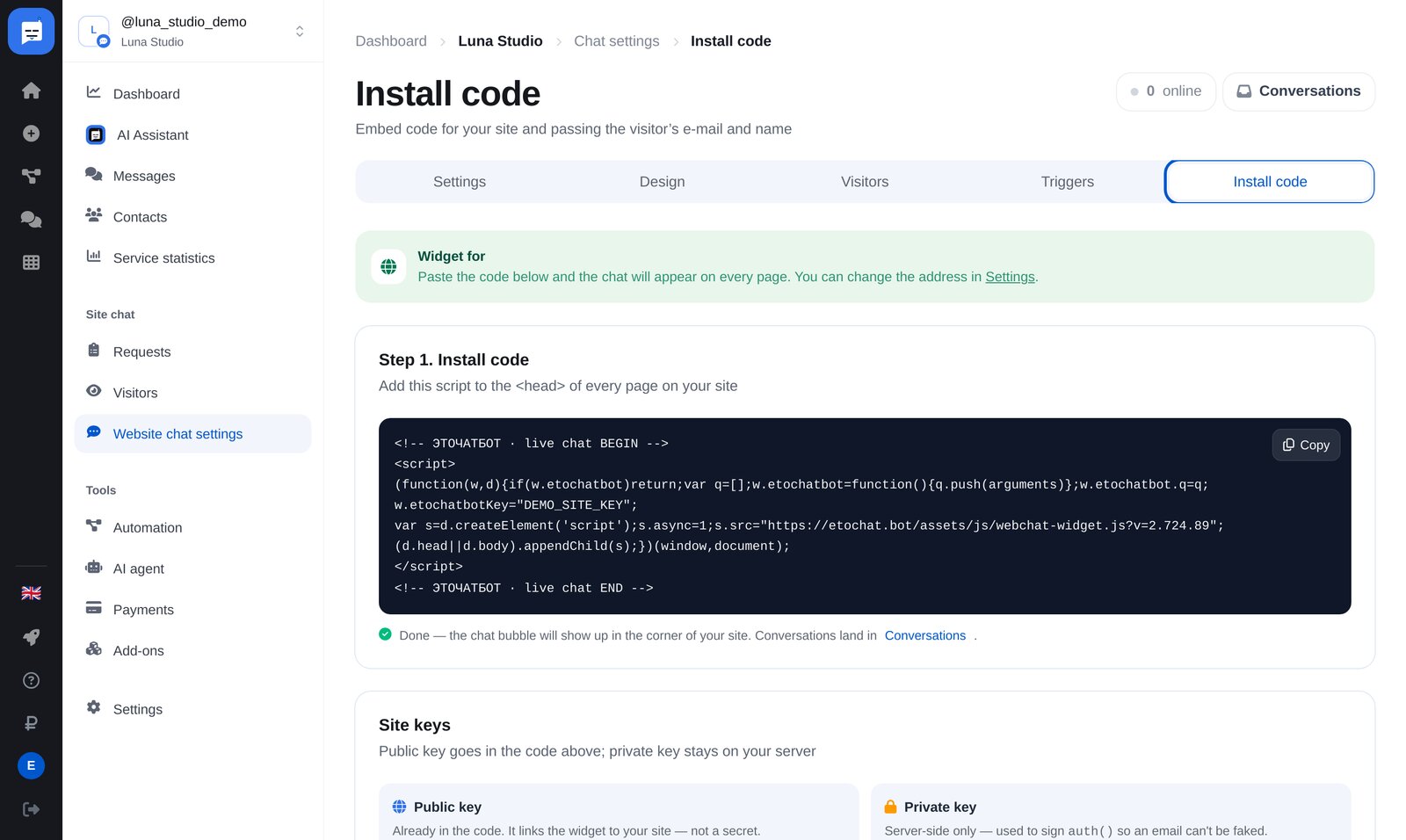
Open “Install code”
The last tab in chat settings.
-
6
Paste the code into your website
Copy the code and paste it into the
headsection of every page. Tilda, WordPress and 1C-Bitrix have a custom code field for this. Install once, then change the appearance in your dashboard.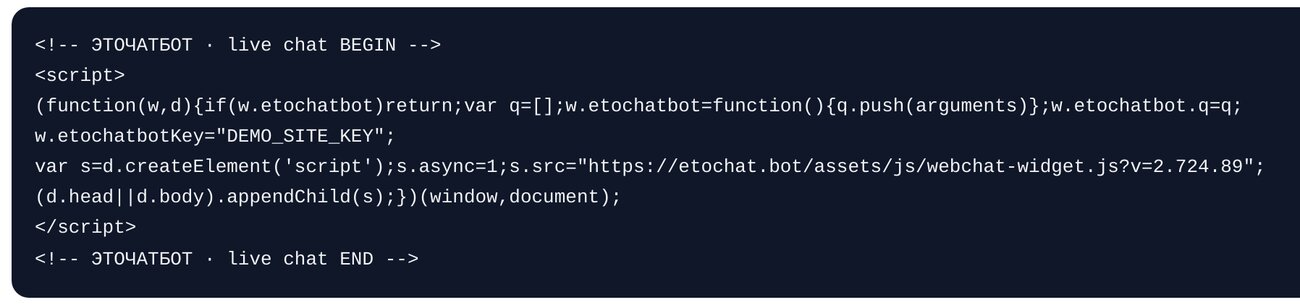


FAQs
Does the widget work with Tilda and WordPress?
Do I need to update the code after changing the design?
Can I show a Telegram button?
How do I know who’s writing?
How much is it?
Set up your chat widget in a couple of minutes