Connect your chatbot to  amoCRM
The bot creates a deal in the right pipeline and stage, including the customer’s contact and message. Repeat requests from the same person use their existing contact—no duplicates.

How it works
- 1
A customer sends a request
On Telegram, Instagram or your website—triggered by a keyword or at any step in a flow.
- 2
The bot creates a deal
In your chosen pipeline and stage, with the customer’s contact: name, phone and email.
- 3
Your team sees it in amoCRM
With the customer’s message, the channel and a link to the conversation.
How to connect amoCRM to your chatbot
In your dashboard:Add-onsIntegrationsamoCRM
-
1
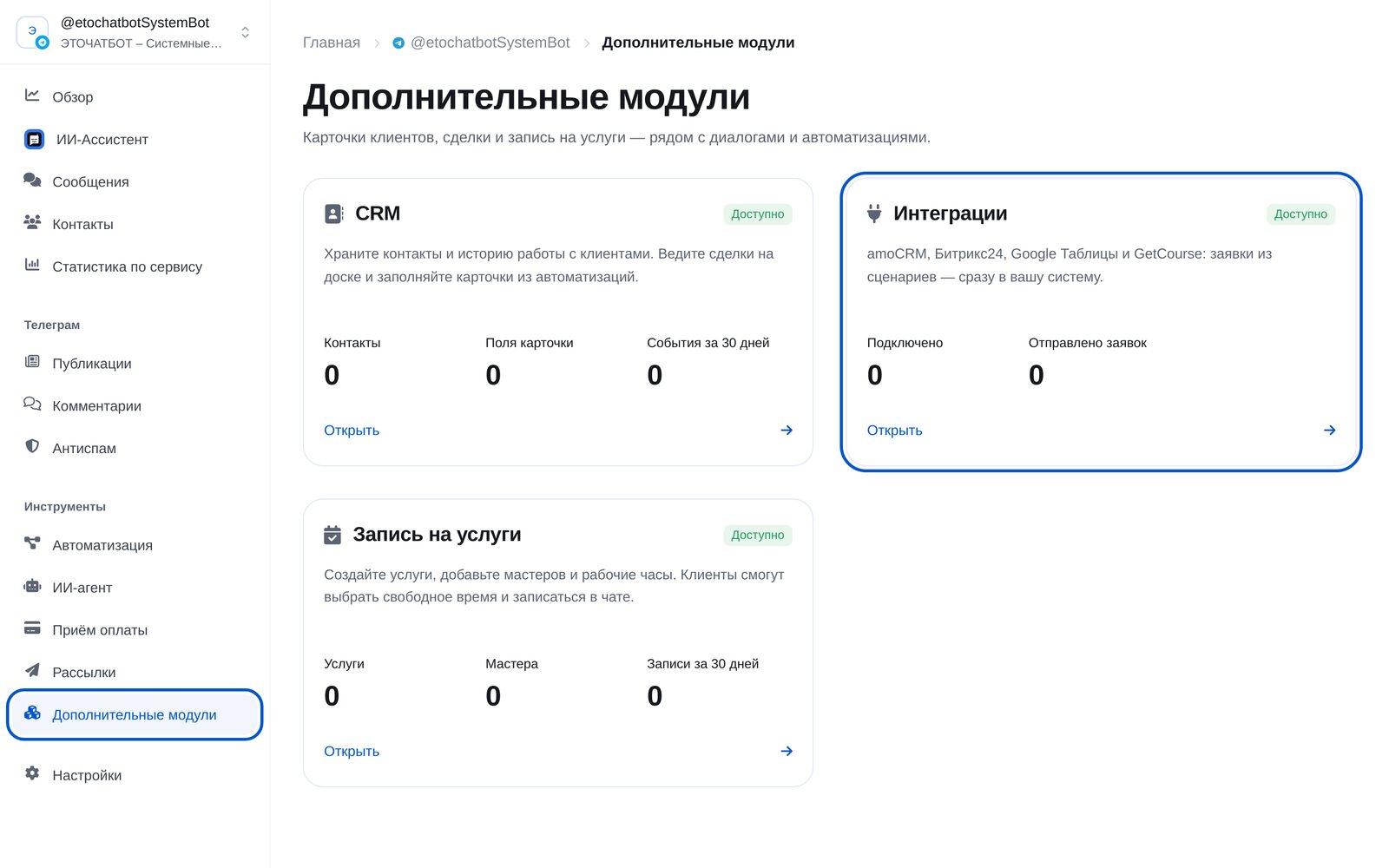
Open “Add-ons” → “Integrations”
In the bot menu, open “Add-ons” and choose “Integrations”. You’ll find four services: amoCRM, Bitrix24, Google Sheets and GetCourse.
-
2
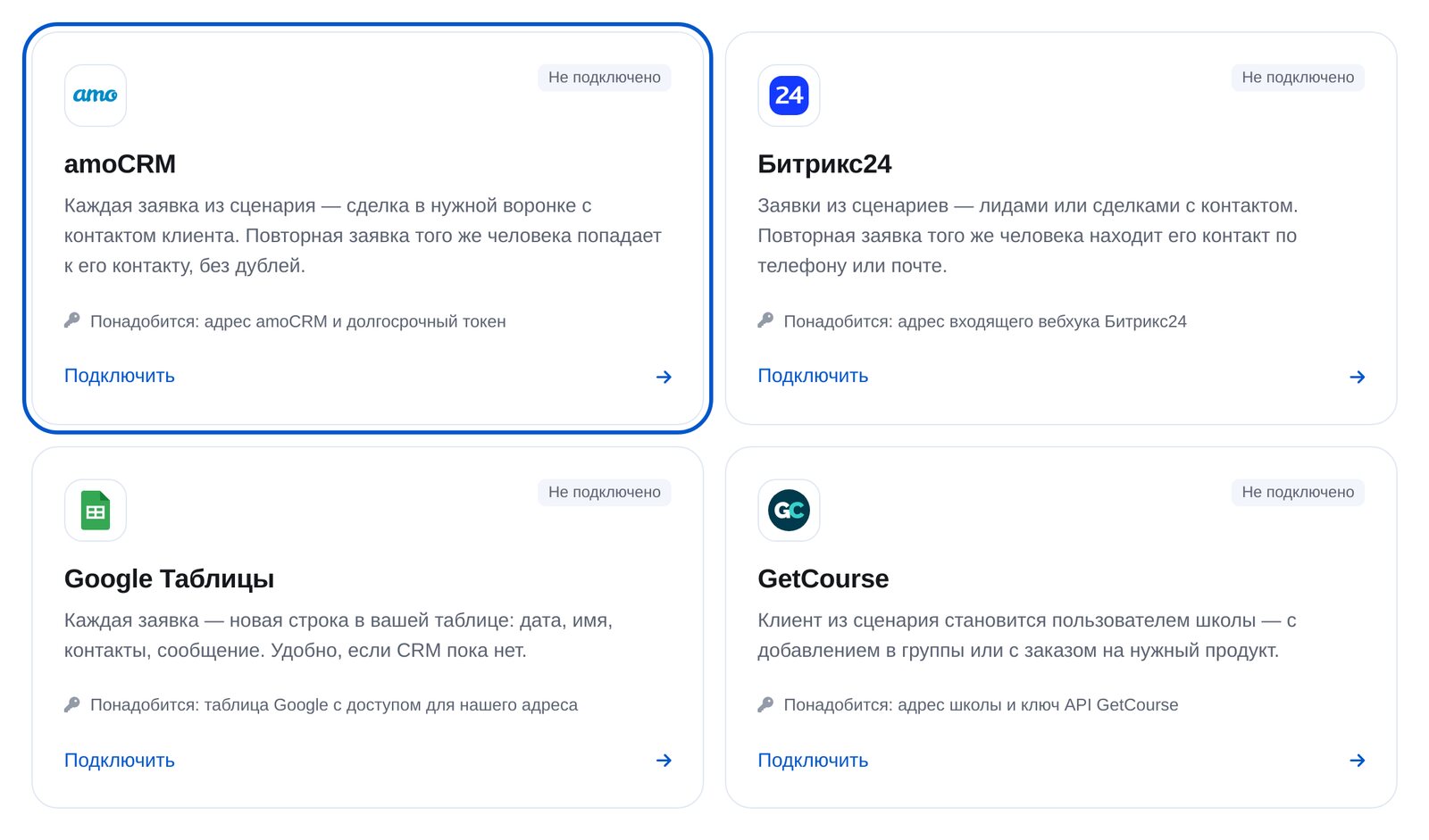
Choose amoCRM
The “amoCRM” card is first. You’ll need your amoCRM address and a long-lived token.
-
3
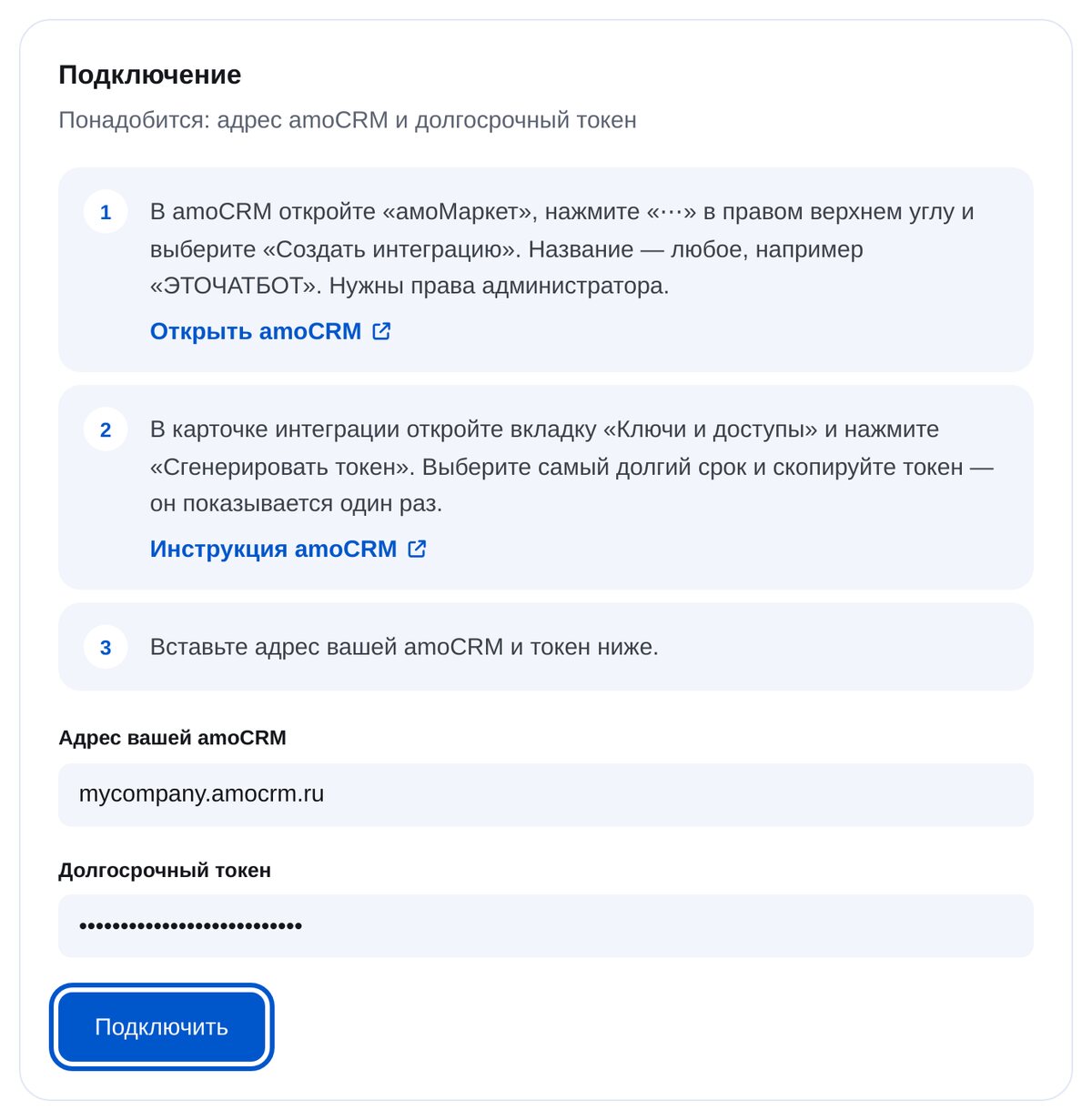
Paste your amoCRM address and token
Create a token in amoCRM: “амоМаркет” (app marketplace) → “⋯” → “Создать интеграцию” (Create integration), then “Ключи и доступы” (Keys and access) → “Сгенерировать токен” (Generate token). Administrator rights are required. The setup page links to amoCRM and its guide.
-
4
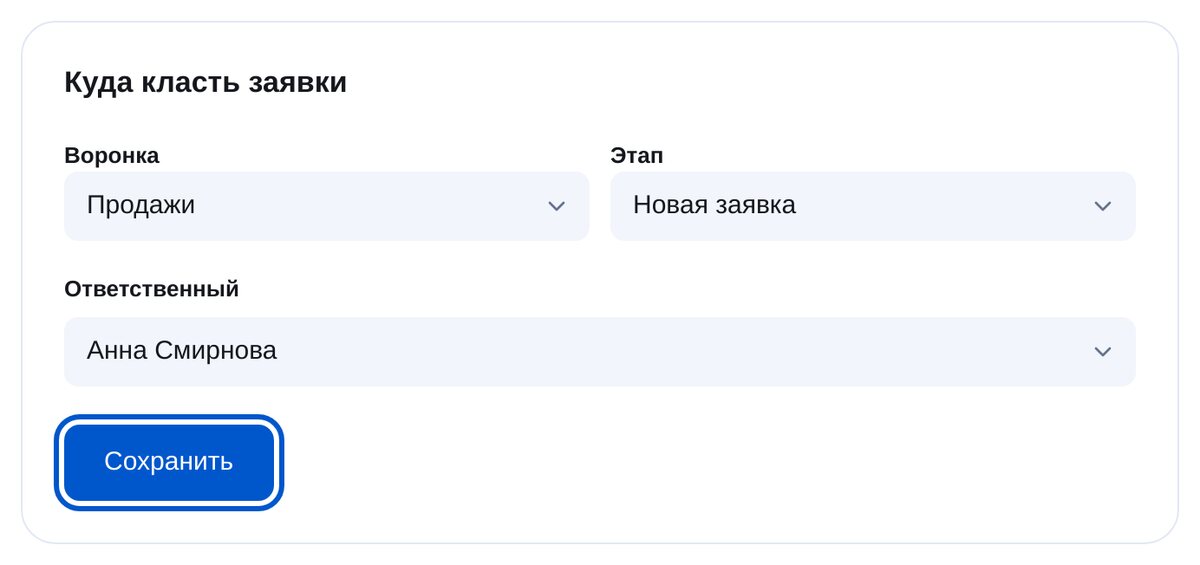
Choose the pipeline, stage and responsible person
The lists come from your amoCRM account. You can leave the responsible person unset; the CRM then assigns the deal using its default settings.
-
5
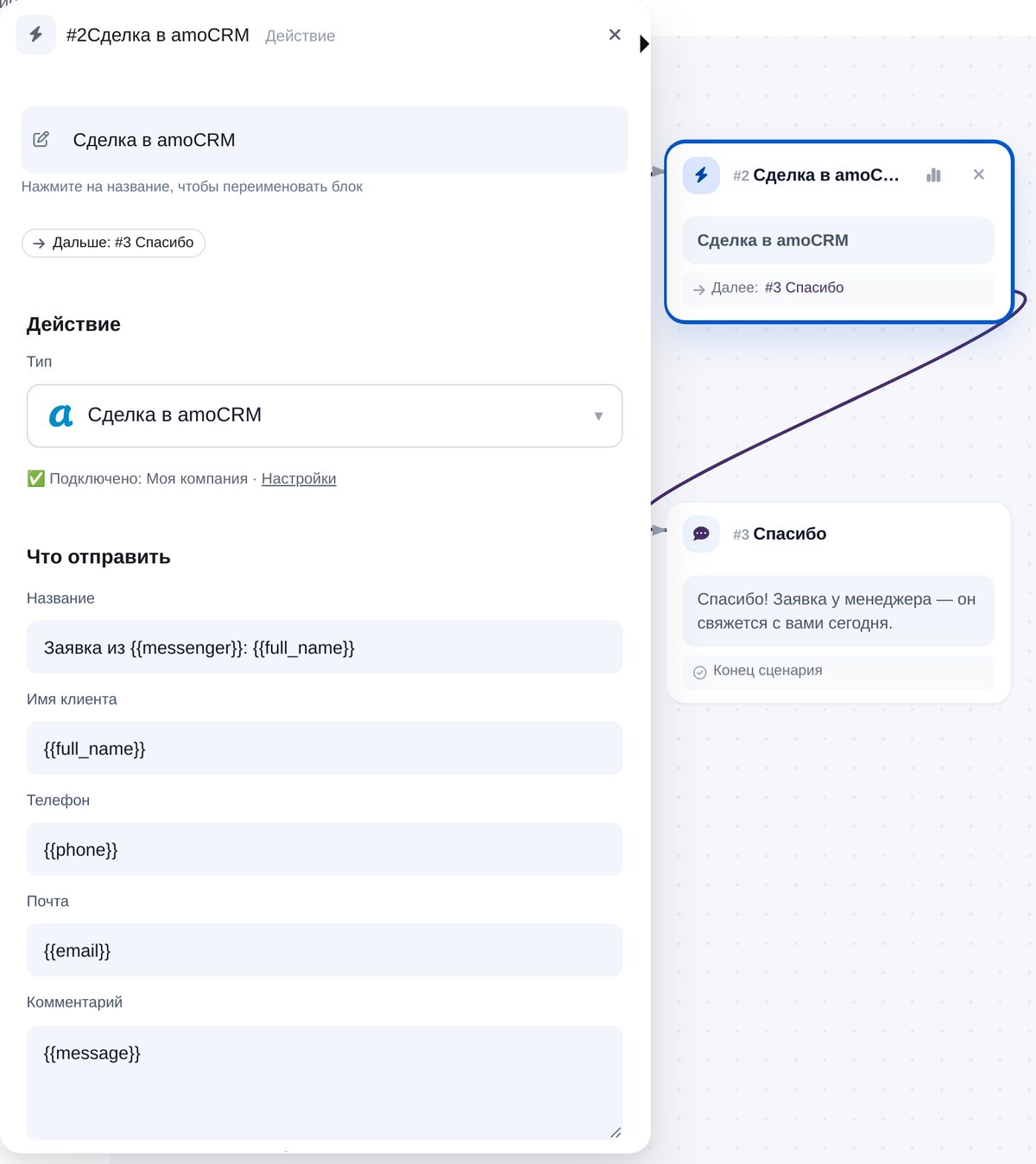
Add the “Deal in amoCRM” block to your flow
In the flow builder, open “CRM & spreadsheets”. The deal title, customer’s name, phone, email and note are already filled with variables. You can add an amount and tags.
-
6
Check the connection
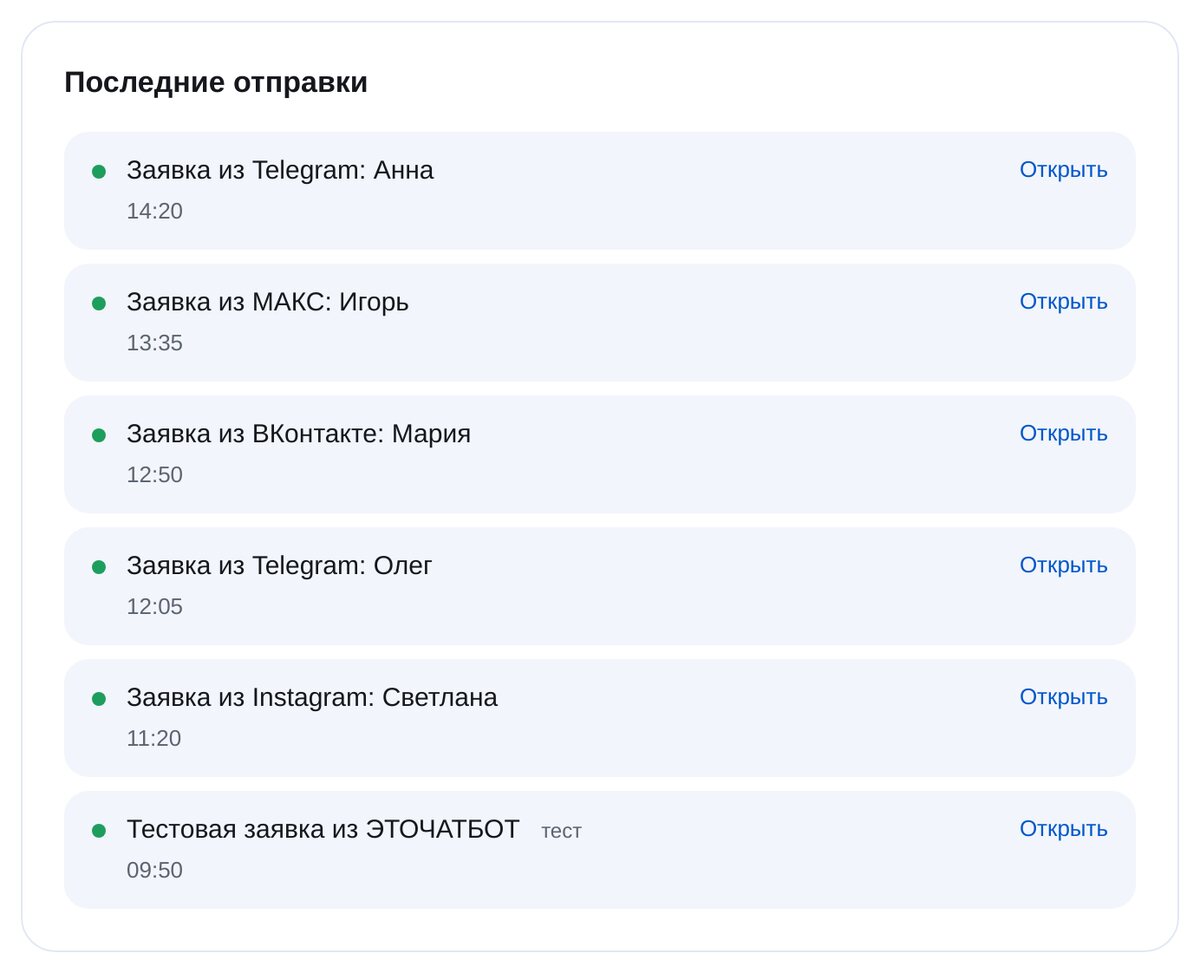
“Send a test lead” creates a deal in amoCRM, with a link to open it. “Recent sends” shows every request, when it was sent and whether it reached amoCRM.


FAQs
What do I need to connect amoCRM?
What is sent to amoCRM?
Will it duplicate contacts?
What if amoCRM doesn’t respond?
Can I use it in different flows?
How much is it?
Connect amoCRM in a couple of minutes