Send chatbot requests to  Google Sheets
Every request becomes a new row: date, name, username, phone, email, message and channel. Choose your own columns and their order. Useful if you don’t have a CRM yet.

How it works
- 1
A customer sends a request
On Telegram, Instagram or your website—triggered by a keyword or at any step in a flow.
- 2
The bot adds a row
To the sheet you choose, with the columns you set.
- 3
Requests collect in your spreadsheet
Filter them, share with colleagues and build reports.
How to connect Google Sheets to your chatbot
In your dashboard:Add-onsIntegrationsGoogle Sheets
-
1
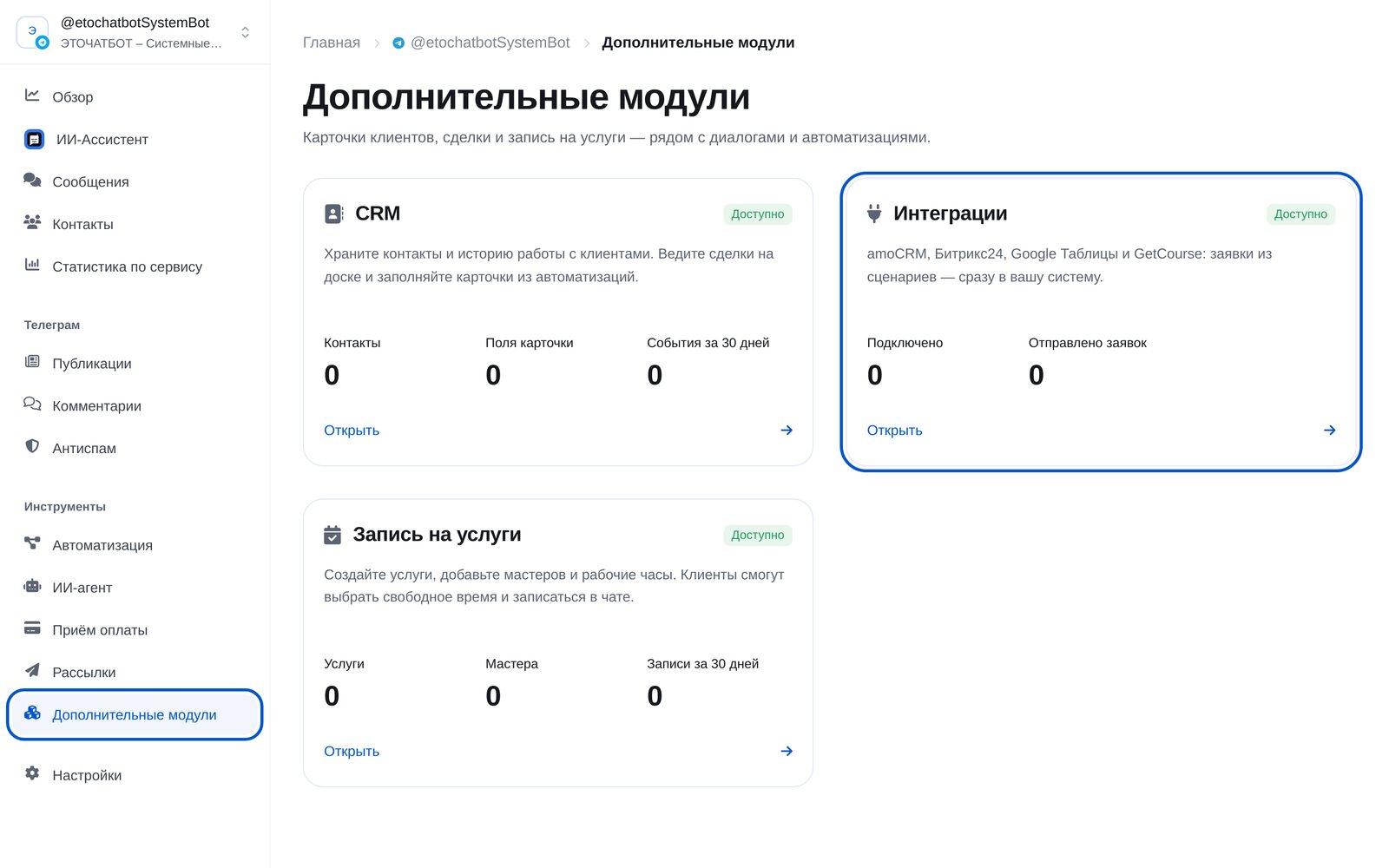
Open “Add-ons” → “Integrations”
In the bot menu, open “Add-ons” and choose “Integrations”. You’ll find four services: amoCRM, Bitrix24, Google Sheets and GetCourse.
-
2
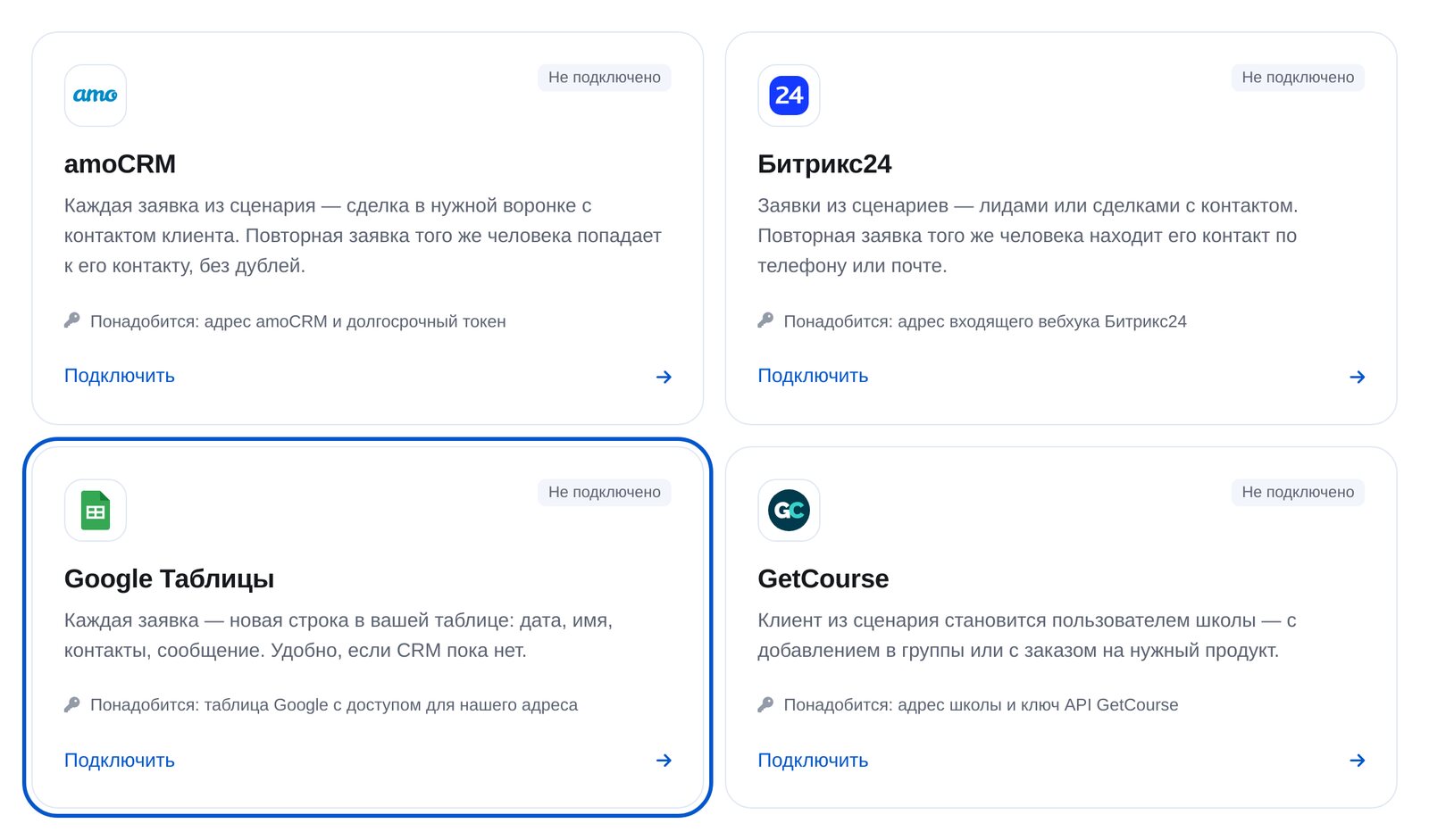
Choose Google Sheets
Open the “Google Sheets” card. You’ll need a spreadsheet that you can share with our service.
-
3
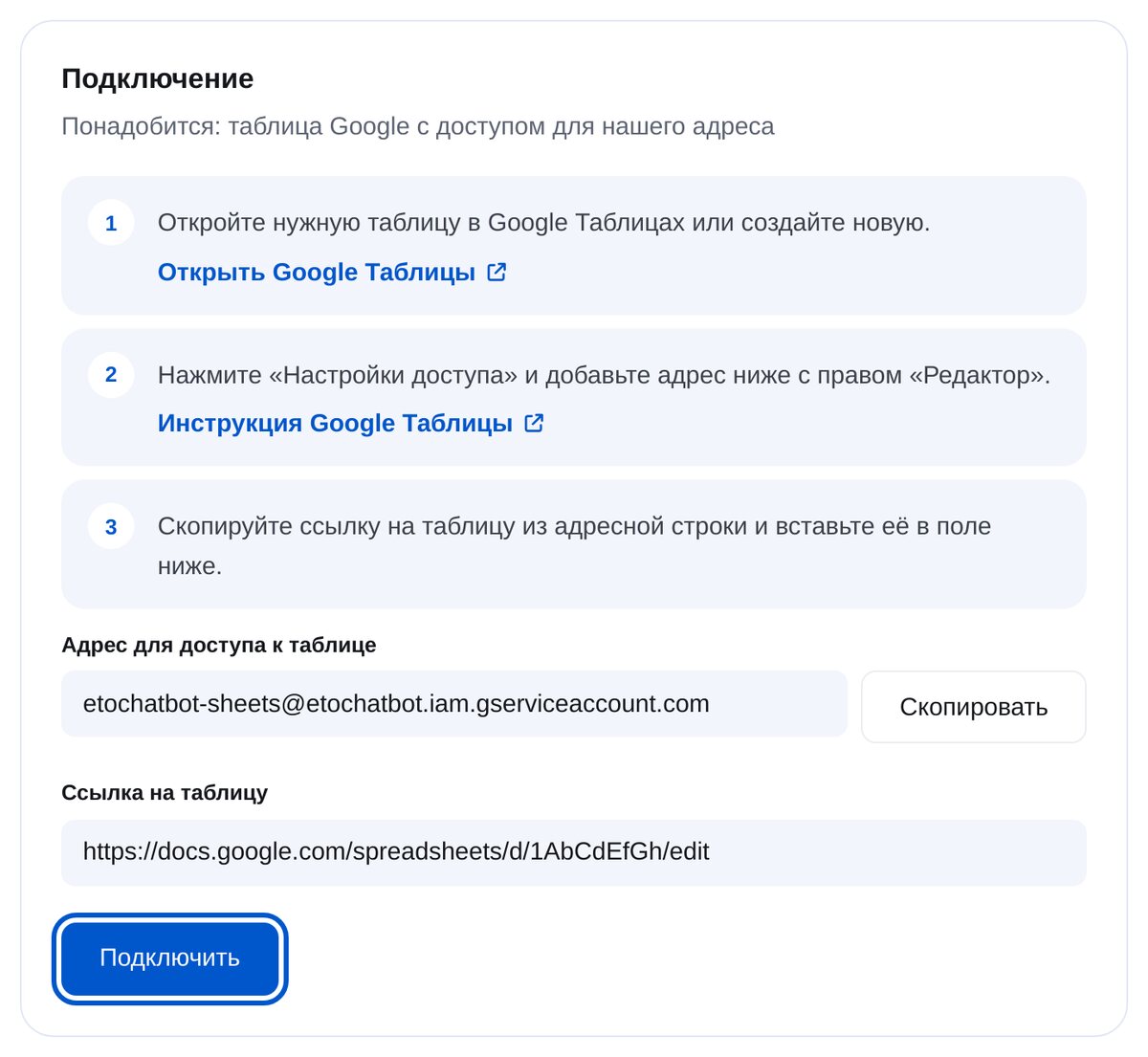
Share the spreadsheet and paste its link
Click “Share” in your spreadsheet and add the service’s email address as an “Editor”. You’ll find the address on the connection page beside “Copy”. Then paste the spreadsheet link.
-
4
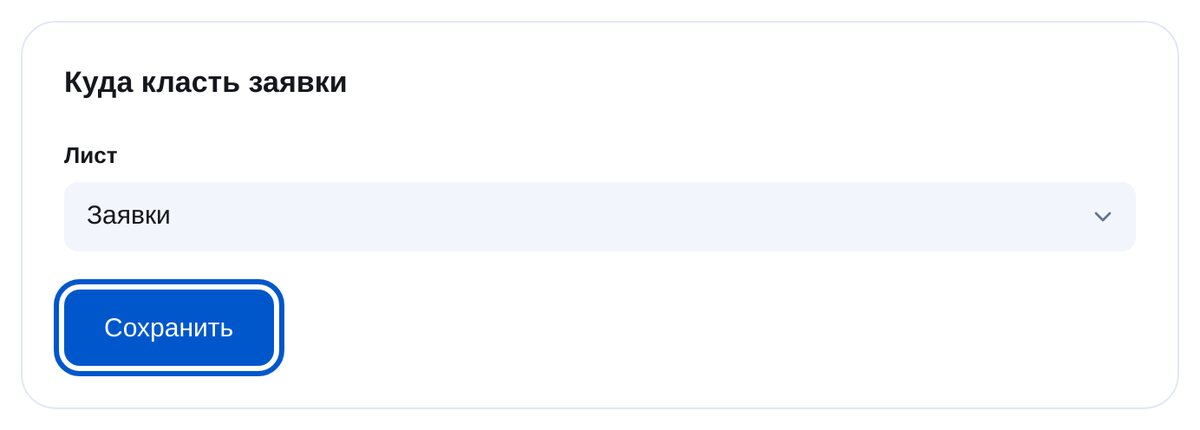
Choose a sheet
Rows are added to this sheet—for example, “Requests”. You can choose a different one in a flow block.
-
5
Add the “Row in Google Sheets” block
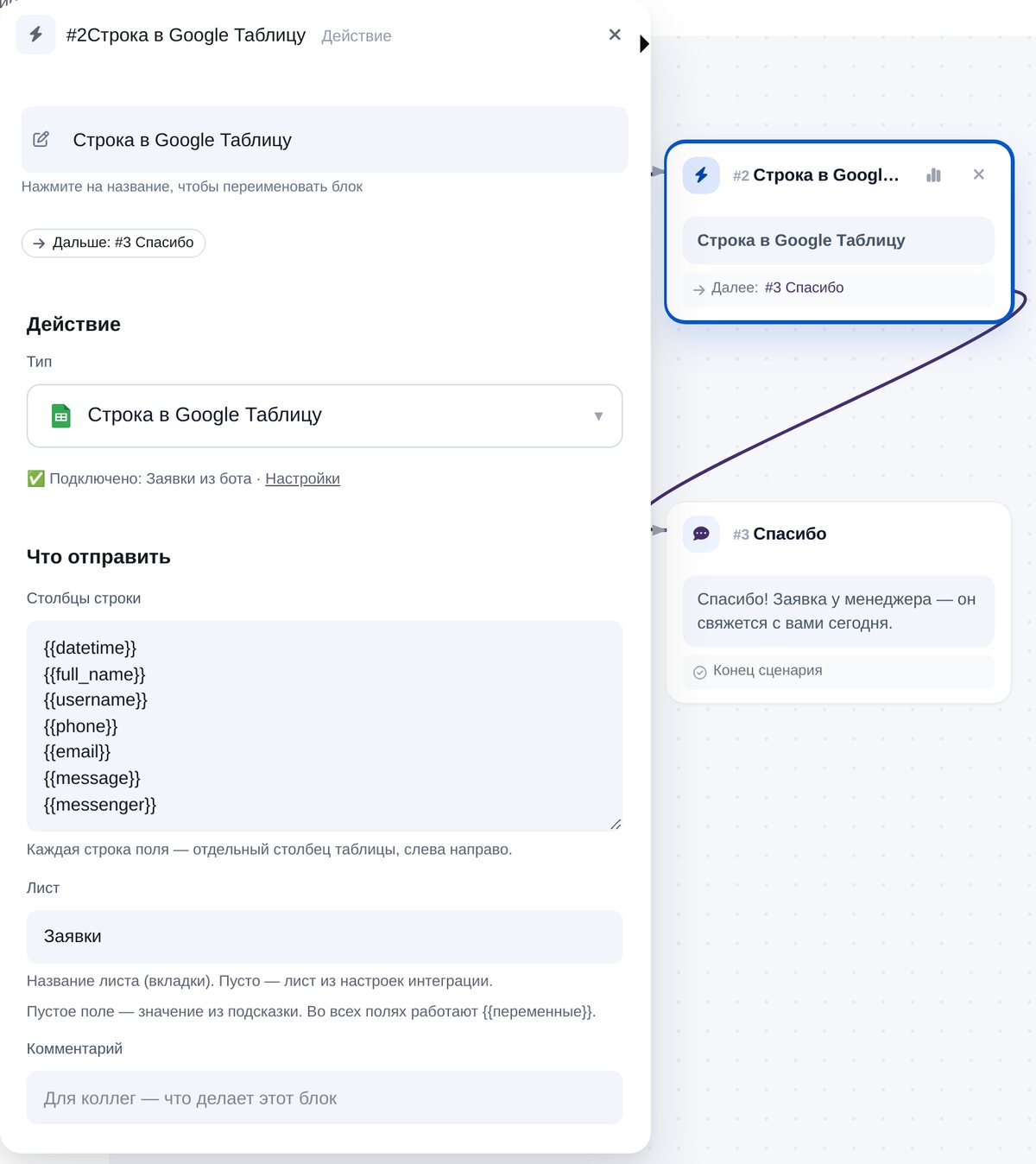
In the flow builder, open “CRM & spreadsheets”. Each line in the field becomes one spreadsheet column, from left to right. Defaults: date, name, username, phone, email, message and channel.
-
6
Check the connection
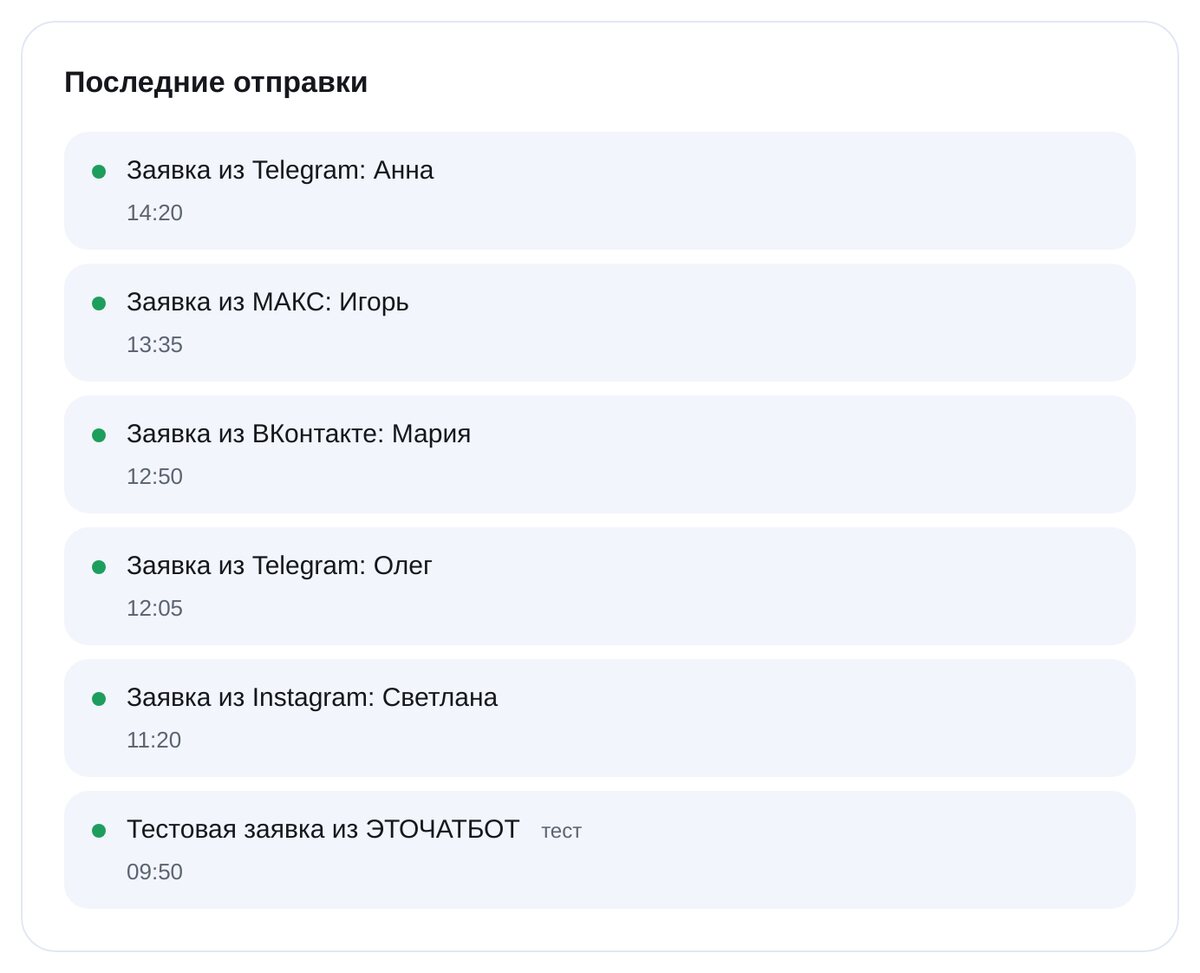
“Send a test lead” adds a spreadsheet row. “Recent sends” shows every request, when it was sent and whether it reached the service.


FAQs
Can it access all my Google Drive files?
Can I choose the columns?
Can I write to different sheets?
Will customer input run as a formula?
What if Google doesn’t respond?
How much is it?
Connect Google Sheets in a couple of minutes